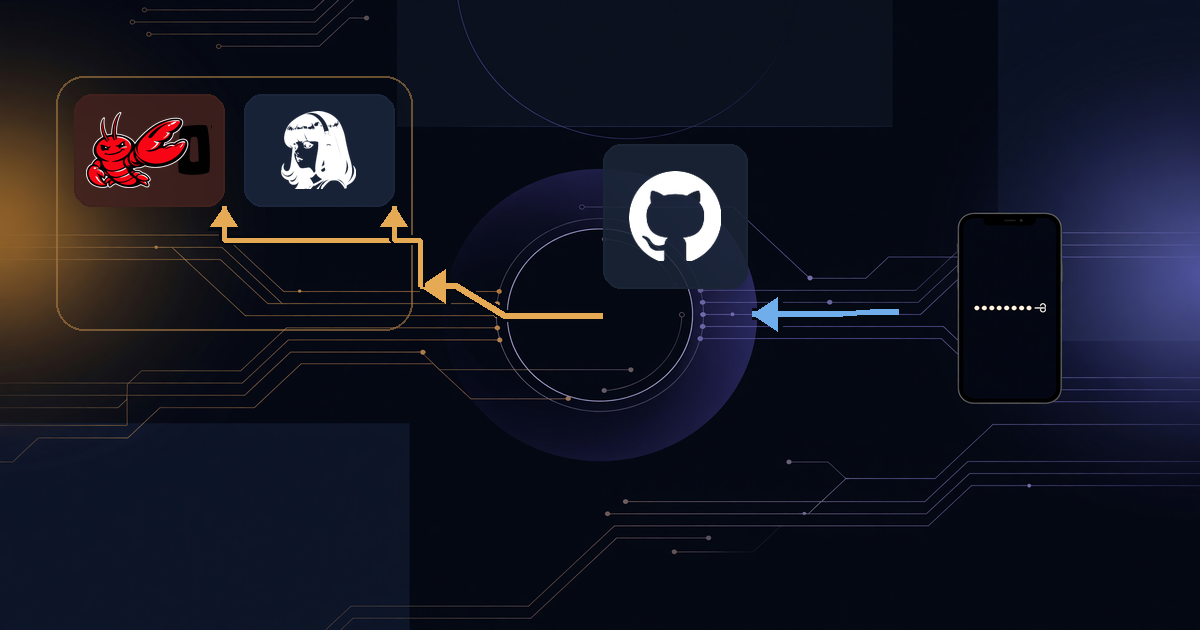
Set Up a Secrets Store Your Agent Can Use
Use pass, a private GitHub repository, and Pass for iOS to give your agent and phone one encrypted password store with autofill.
This guide sets up pass, a private GitHub repository, and Pass — Password Store for iOS so your agent can read secrets and your phone can autofill them from the same encrypted store.
Agents need passwords, API keys, app passwords, and service accounts. You need to give them access without copying values into chat, tracked files, or terminal output—and still use some of those credentials on your phone. The secure path has to be convenient enough to keep using.
Bitwarden showed me why. It worked, but adding a credential for one person and one agent felt like administering a team vault. I delayed inserts and reached for browser tabs, temporary files, and chat instead. pass won because adding the next secret is small enough to do every time.
What the setup needs
- Phone autofill.
- Agent reads without an interactive unlock step.
- No paid subscription between the agent and the secret.
- Fast inserts.
- No values in ordinary tracked or synced files.
- A format not tied to one vendor.
| Requirement | Apple Passwords | LastPass | Proton Pass | Bitwarden | pass + Pass for iOS |
|---|---|---|---|---|---|
| Phone autofill | ✓ | ✓ | ✓ | ✓ | ✓ |
| Agent can read it | ✗ | ~ | ~ | ✓ | ✓ |
| No paid subscription for agent access | ✗ | ✗ | ✓ | ✓ | ✓ |
| Easy to add a credential | ✓ | ✓ | ~ | ✗ | ✓ |
The solution that met those requirements is three pieces: pass encrypts each secret locally, a private GitHub repository syncs the encrypted files, and Pass for iOS reads the same store on the phone. GitHub receives ciphertext, not values; filenames are still visible, so keep the repository private.
1. Create a test store
Give your agent this prompt:
Set up a new pass store for me. Generate a GPG key if necessary, export the secret key, public key, and revocation certificate to a separate backup location, then initialize pass with that key. Create a test entry named example.com with the value password. Do not print the secret key or any password value.Behind the scenes, it should run commands shaped like:
pass init <key-id>
printf '%s\n' 'password' | pass insert -m example.com
pass show example.com | head -1
Check: the last command returns password. Do not add real credentials yet.
Secrets are one piece of the operating setup; seven emails cover the rest.
2. Push the encrypted store to GitHub
Initialize Git in ~/.password-store, add my new private GitHub repository as origin, push it, and verify the remote contains the test entry. Report the entry name and file extension, never the value.The agent should use pass git push or a normal Git push. Open GitHub and check that the repository contains example.com.gpg, not the word password. That proves GitHub holds ciphertext, not the secret.
3. Connect Pass for iOS
Install Pass — Password Store. In Settings, add the repository with its HTTPS clone URL.
Create a GitHub personal access token with access to that private repository. The Pass form calls this field GitHub password. It does not mean your GitHub account password; paste the PAT token there. It is the password for the HTTPS Git operation.
Use HTTPS here. SSH can work, but the app may reject a modern OpenSSH private-key format. HTTPS plus a PAT avoids that key-format detour.
Then import the same private GPG key used on the machine. Repository access lets the app download .gpg files; the private key lets it decrypt them.
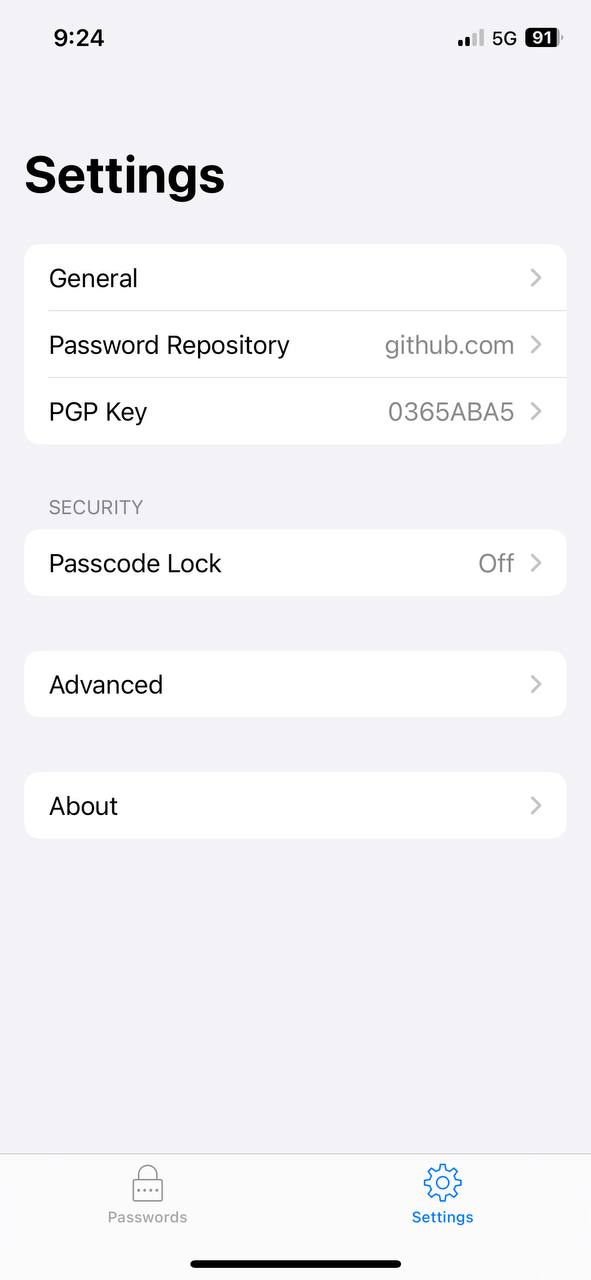
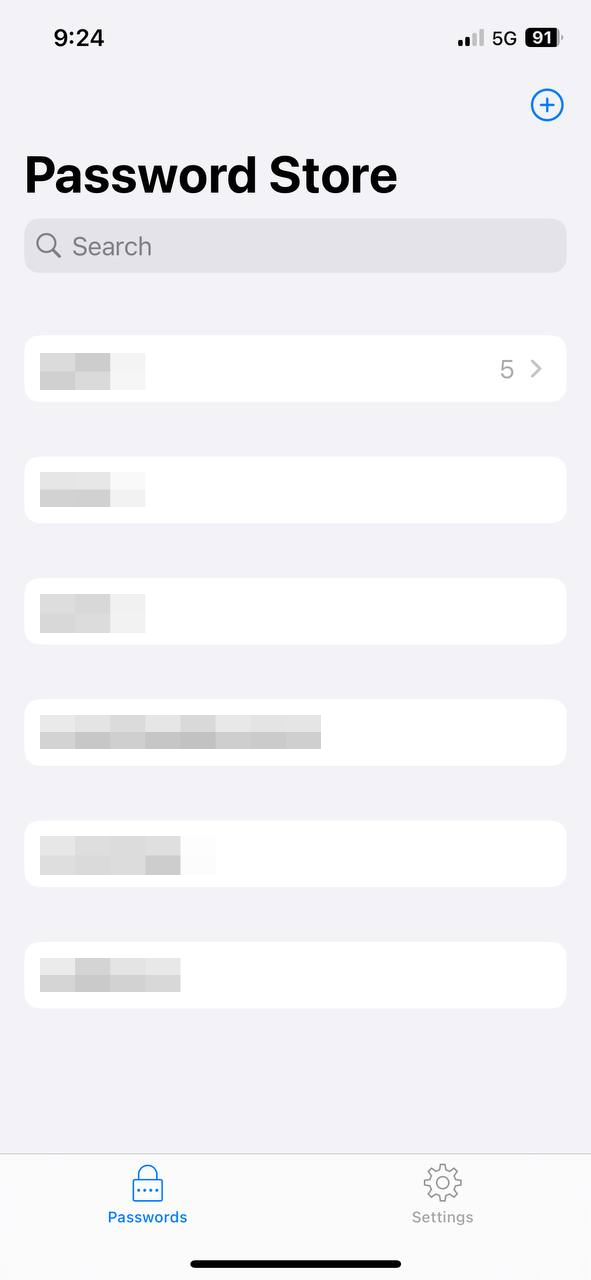
Check: pull from the app’s home screen. Confirm example.com appears, open it, and confirm it shows password. Then enable Pass under iOS Settings → Passwords → Password Options and test autofill.
4. Prove the phone can write back
Create a second disposable entry in the Pass app: phone-test with value password2. From the app home screen, pull down to synchronize and push it to GitHub.
Check: confirm phone-test.gpg appears on GitHub. Back on the machine, run:
pass git pull
pass show phone-test | head -1
The result should be password2. You have now proven both directions: machine encrypts and pushes; the phone pulls and decrypts; the phone writes and pushes; the machine pulls and decrypts.
5. Add real credentials through the agent
Add this credential to pass as <entry>. Put the secret on line one and the non-secret metadata below it: username, url, kind, expires, rotate, and note. Do not print the secret, put it in a tracked file, or pass it as a command-line argument. Use agent/<name> for credentials only the agent needs.Behind the scenes, the write should look like:
printf '%s\n' "$entry_body" | pass insert -m <entry>Check: pull on the phone and confirm the entry appears; then push from the phone and confirm the encrypted .gpg file appears on GitHub. agent/ is a browsing convention, not an access boundary.
6. Teach every new agent session to use the store
Add credential hooks to my agent's instruction files.

Files to touch:
1. <always-loaded instruction file — AGENTS.md / CLAUDE.md / system prompt>
2. <tools/notes file — the file the agent checks for capabilities>
3. <long credential-policy note>

Keep the always-loaded block under 20 lines. Put detail in the policy note and leave a pointer to it.

Add this block:

## Credentials
- Store: pass at ~/.password-store.
- List entries: pass.
- Read a value: pass show <entry> | head -1.
- Read metadata below line one when needed: username, url, kind, expires, rotate.
- Before asking me for a credential, check the store first.
- Use the value inline; never echo it or put it in chat, a commit, an error, a log, or a tracked/synced file.
- Never pass a secret as a command-line argument.
- If an entry seems missing, run pass git pull once. If it is still missing, ask instead of guessing.
- Create, edit, delete, or push entries only when I ask.

In the long policy note, document the entry format, the read path, static credentials versus rotating tokens, and the failure cases: missing entry, decryption error, and stale value.

Then prove the hook works: read one test entry and report only its length and a six-character hash prefix. If any value appears in output, the test fails.
The short block makes every fresh session check the store before asking the human. The long policy note holds the detail without putting it into every context window.
When the agent needs a value, its command should look like this:
curl -H "Authorization: Bearer $(pass show agent/example-api | head -1)" https://api.example.com/meCheck: start a fresh agent session and ask it to make one safe authenticated read using a test credential. It should find the entry without asking you for the value, and the value should never appear in its output.
At that point, the password store is part of the agent’s operating environment, not just a folder.